
With the OxBlue app from the Procore Marketplace, your team can view your OxBlue cameras directly inside Procore. Anyone with access to the Procore project can open the camera from the project's Apps menu, so there's no separate OxBlue link to send around.
Looking to send OxBlue images into Procore's Photos, RFIs or Observations? That's a different feature. See How do I integrate my construction camera with Procore?
Choose how your camera appears
You can show your camera in Procore one of two ways:
- OxBlue App: the full OxBlue interface, including your image history, calendar, time-lapses and tools. Best for your project team.
- OxStream: the camera's video stream only, with no history or controls. Best for owners, stakeholders and others who only need to see the site.
You can set up both for the same project, for example the full app for your team and OxStream for the owner.
Before you start
- Procore admin access. You'll need Admin permission on your company's Admin tool in Procore. If you don't have it, send this article to your Procore administrator.
- Your camera details from OxBlue. Contact your OxBlue Client Support manager and tell them which cameras you want in Procore and which view (OxBlue App or OxStream). They'll send you the values to enter.
Step 1: Install the OxBlue app
- Go to the OxBlue app in the Procore Marketplace.
- Click Install App (it reads Login to Install until you sign in to Procore), then confirm.
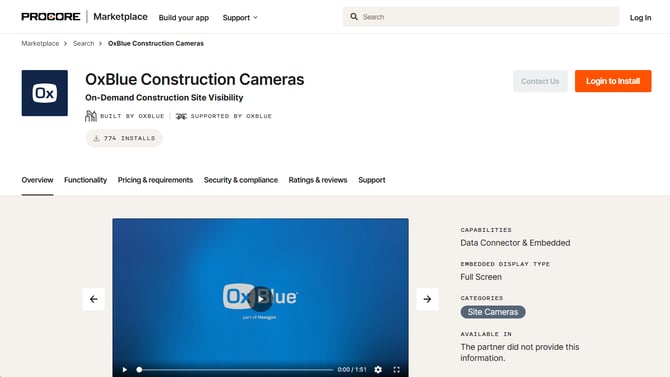
Already installed? If you don't see the fields described in Step 3, update the app first. See Procore's guide, Update an installed app.
Step 2: Create a configuration
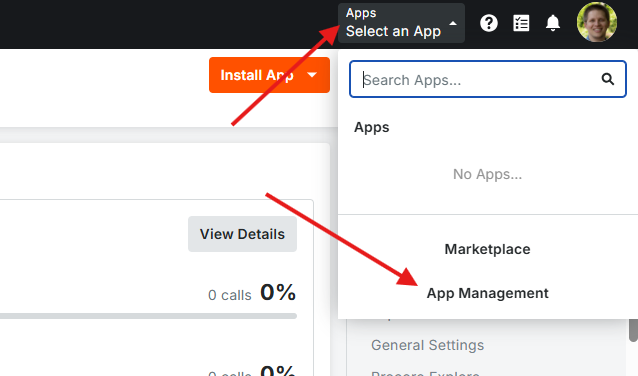
- In Procore, open the Apps menu in the upper-right corner (it reads Select an App) and click App Management at the bottom.
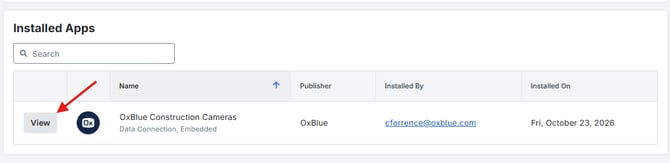
- Find OxBlue and click View.
-
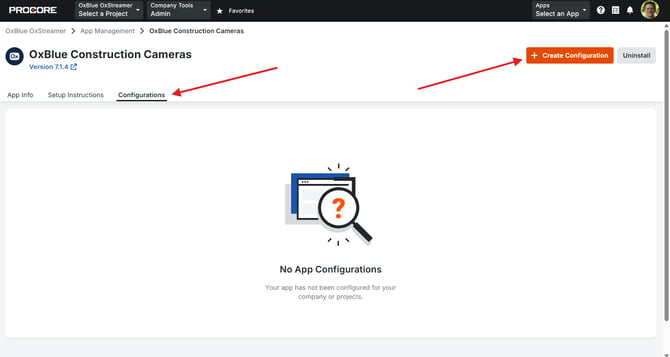
Open the Configurations tab and click Create Configuration.
Step 3: Enter your camera details
- Under Projects, choose the Procore projects that should show this camera.
- Fill in the fields using the details from OxBlue Client Support (see the table below).
- Click Save.
|
Field |
What to enter |
|
Title |
The name your team will see in the Apps menu, such as "North Tower Camera." |
|
Type |
Enter "app" for the full OxBlue interface, or "stream" for the video stream only. Leaving it blank gives you the full interface. |
|
Public Link |
App only. The public link name from OxBlue Client Support. |
|
Camera ID |
App only, optional. Opens straight to a specific camera. Leave blank to open on your dashboard. |
|
Video ID |
Stream only. The Video ID from OxBlue Client Support. |
|
Display Token |
Stream only. Leave blank unless OxBlue Client Support gives you one. |
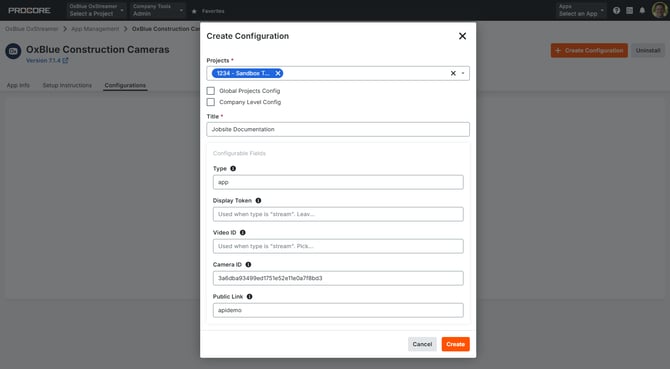
Repeat these steps for each camera or view you want to add.
Step 4: View your camera in Procore
- Open one of the projects you selected.
- Click Apps in the upper-right corner.
- Choose your camera by the Title you gave it.
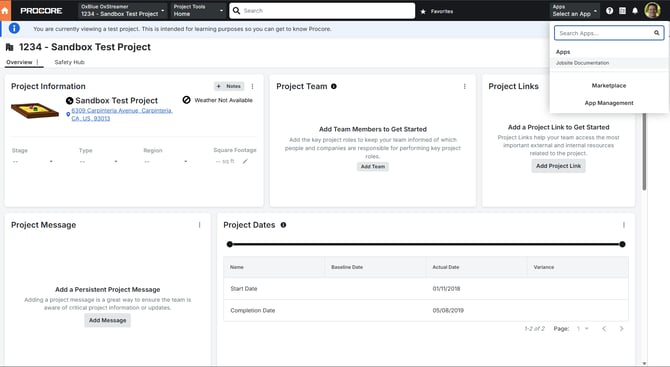
Only people with access to that Procore project can see the camera.
Troubleshooting - Frequently Asked Questions
What if I don't see a Configurations tab, or the Type and Video ID fields are missing?
You have an older version of the OxBlue app. Update the app in Procore. If no update is offered, uninstall the OxBlue app and install it again.
The camera shows a message saying something is invalid.
One of the configuration values was entered incorrectly. If the message mentions the type, make sure Type is spelled app or stream. For any other value, check it against what OxBlue Client Support sent you, without extra characters or web addresses, and save again.
The camera shows the OxBlue login page.
The Public Link is missing from the configuration. Add it, or sign in with your own OxBlue account.
The camera shows a blank gray page.
Your browser may be blocking cookies from OxBlue inside Procore. Allow cookies for https://app.oxblue.com in your browser settings, then reload the page.
Still stuck? Contact OxBlue Client Support and let us know which Procore project and camera you're working with.